

Open Settings → Portal Settings. The page title is Brand Settings: "Manage identity, domains, and portal customization from one place." You need the Manage Settings permission.
Visual Walkthrough
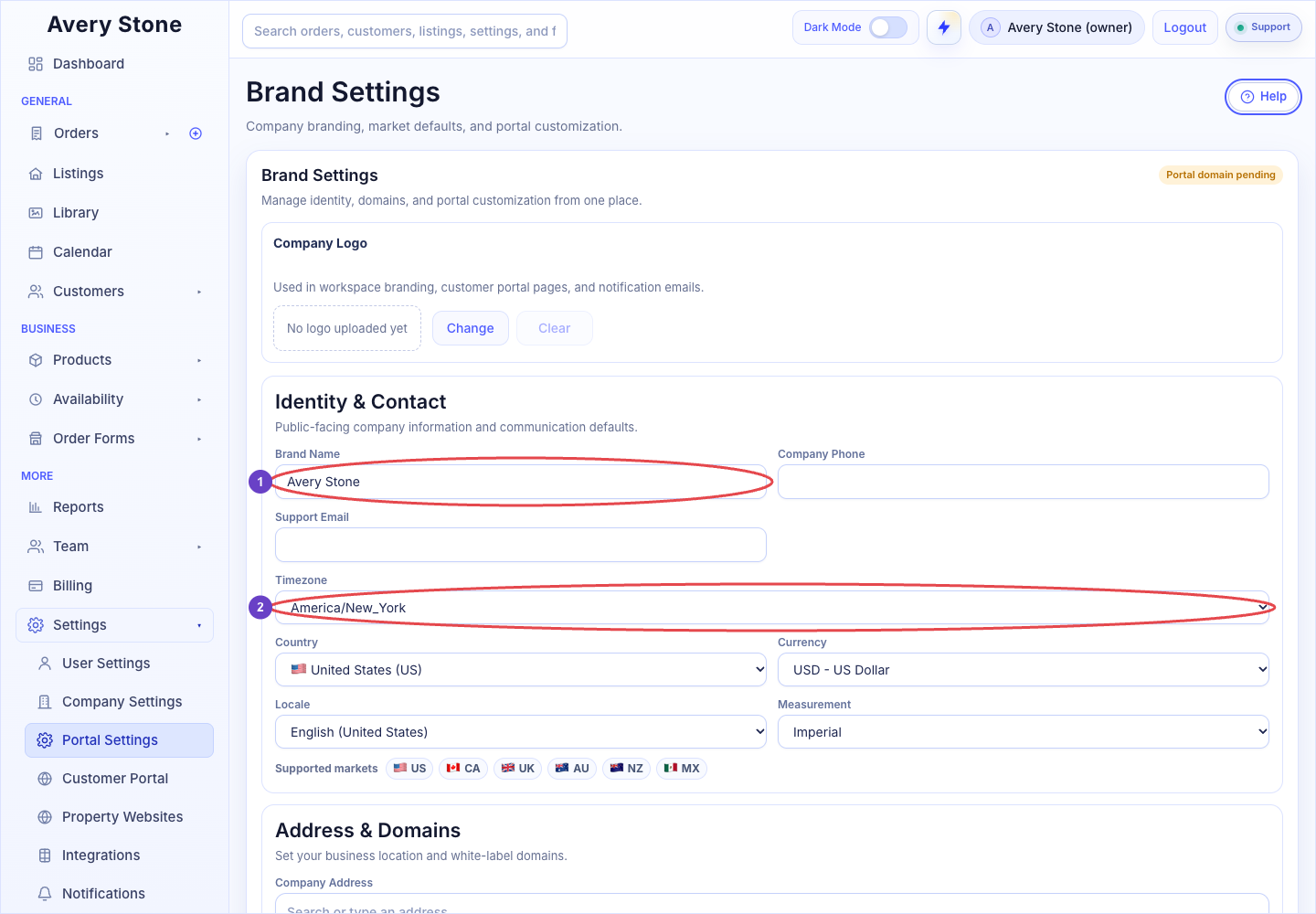
Brand Settings: 1 Brand Name; 2 Timezone. The Avery Stone Demo workspace is shown; your saved values and available controls may differ. Open the Full-Size Image.
Company Logo
Used in workspace branding, customer portal pages, and notification emails. Use Change to upload and Clear to remove it.
Identity & Contact
Public-facing company information and communication defaults: Brand Name, Company Phone, Support Email, Timezone, Country, Currency, Locale, and Measurement. These are the same company values shown in Company Settings.
Address & Domains
Set your business location and white-label domains: Company Address, Website Domain, and Portal Domain. To verify and activate custom domains, see Set Up White Label Domains.
Portal Customization
Customize colors, typography, and the white-labeled portal front page that sits in front of customer and team sign-in.
| Color | Where It Appears |
|---|---|
| Primary Color | Main buttons and accents. |
| Secondary Color | Secondary accents. |
| Background Color | Page background. |
| Surface Color | Cards and panels. |
| Border Color | Lines and outlines. |
| Body Font Color | Regular text. |
| Muted Font Color | Secondary text. |
| Heading Font Color | Headings. |
Enter colors as hex values such as #4d5bff. Also set Body Font Family, Heading Font Family, and Base Font Size (px). Reset Defaults restores the default palette.
Portal Front Page Side Image
Upload an image for the left side of the white-labeled portal front page. It sits beside the sign-in form rather than becoming a full-page background. Large images are compressed automatically. Use Upload Image and Clear Image.
Select Save Company Settings to apply everything on this page.
Logo Address
When a branding editor offers Logo URL, paste the direct address of a publicly accessible logo image, rather than the address of a page containing the image. Review the preview and save the branding changes. Use the upload option where available if you do not already host a logo.