

Open Settings → Company Settings → Deposits. This tab sets the global default deposit used when your team creates appointment orders on behalf of customers. Viewing it needs financial access; changing it needs Manage Financial.
Visual Walkthrough
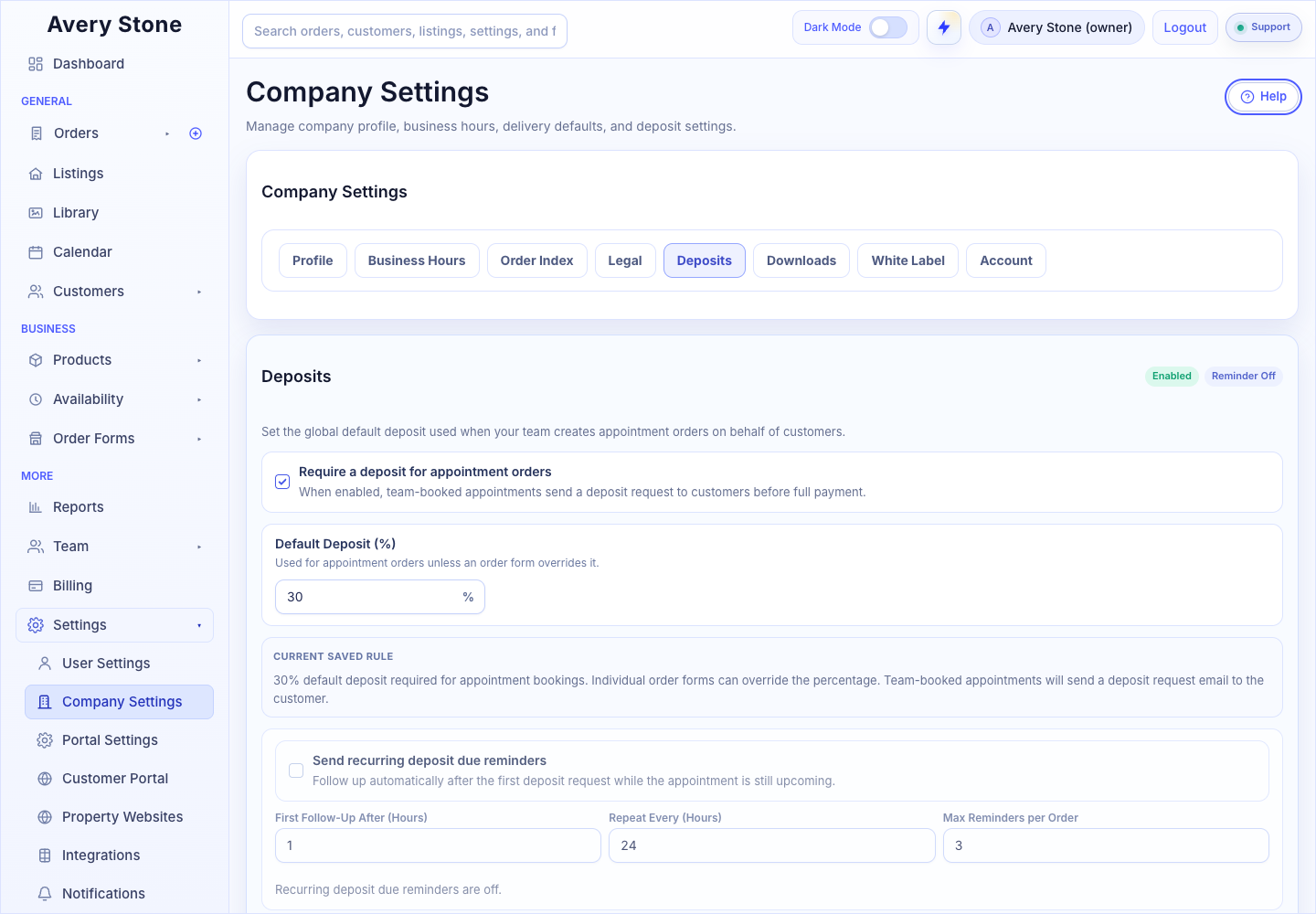
Company Deposit Defaults and Recurring Reminder Settings. The Avery Stone Demo workspace is shown; your saved values and available controls may differ. Open the Full-Size Image.
Settings
| Setting | What It Does |
|---|---|
| Require a deposit for appointment orders | When on, team-booked appointments send a deposit request to customers before full payment. |
| Default Deposit (%) | The percentage requested. Used for appointment orders unless an order form overrides it. |
| Send recurring deposit due reminders | Follows up automatically after the first deposit request while the appointment is still upcoming. |
| First Follow-Up After (Hours) | Wait time before the first reminder. |
| Repeat Every (Hours) | Time between later reminders. |
| Max Reminders per Order | The most reminders one order can receive. |
Current Saved Rule summarizes what is active. Select Save Deposit Settings.
Which Deposit Rule Wins
Whether a deposit is required is decided from most specific to least specific:
- The order itself. Your team can change or remove the deposit on an individual order. This wins over everything else.
- The customer. In the customer's Settings tab, Deposit Rule can be Use workspace default, Require deposit, or No deposit.
- This Deposits tab. Require a deposit for appointment orders is the workspace default.
The deposit percentage comes from Default Deposit (%) on this tab, unless the order form used for the booking has Deposit Override → Use custom deposit percentage turned on. In that case the form's Deposit Percentage is used for orders submitted through that form.
How Customers Are Notified
Deposit requests use the Order Deposit Request notification template. Make sure it is enabled in Notifications. SMS is available for deposit requests when SMS Text Notifications is turned on.
Example
Set Default Deposit (%) to 25 and enable reminders with First Follow-Up After (Hours) of 24, Repeat Every (Hours) of 48, and Max Reminders per Order of 3. A customer who has not paid receives a reminder one day after the first request, then up to two more two days apart, while the appointment is still upcoming.