

User Settings holds the details that belong to you rather than to the company. Every signed-in team member can open it from Settings → User Settings, or by selecting your name in the top bar.
Visual Walkthrough
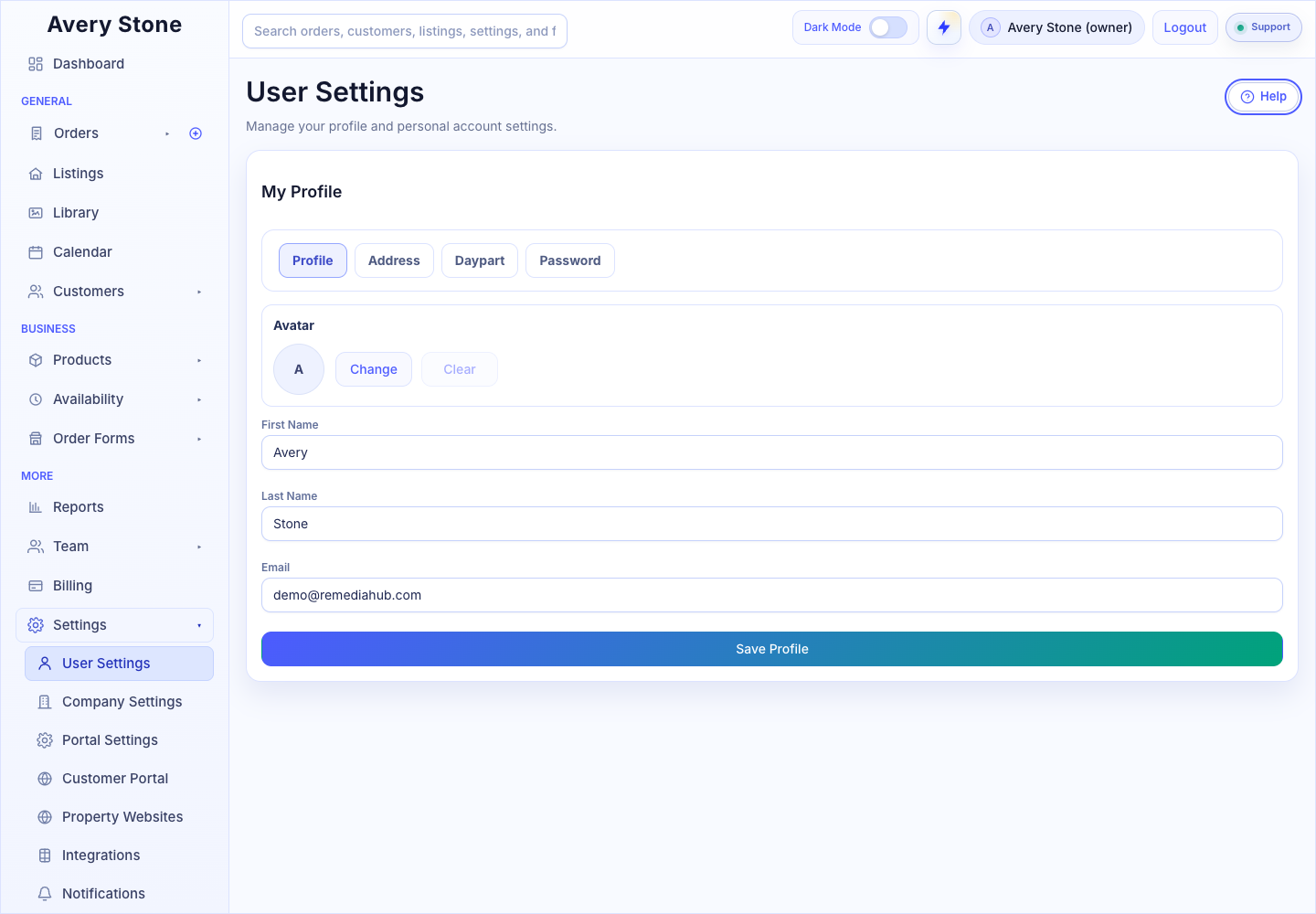
User Settings: Profile, Address, Daypart, and Password Tabs. The Avery Stone Demo workspace is shown; your saved values and available controls may differ. Open the Full-Size Image.
Profile
| Field | What It Does |
|---|---|
| Avatar | Your profile photo, shown in the workspace and on team lists. Use the upload control to add one and the remove control to clear it. |
| First Name / Last Name | Your display name across the workspace, calendars, and assignments. |
| The email address on your account. |
Select Save Profile to apply changes.
Address
The Home Base Address (with Unit/Suite/Floor #, City, State, and Postal Code) is your default starting point, used for route-based features such as assignment routing and mileage estimates. Select Save Address.
Tip: Owners and admins can also set a team member's home base from the team member editor in Team.
Daypart
This tab appears for members who manage settings or work assigned appointments. It controls which Sunrise, Sunset, and Twilight appointments you accept on each weekday.
- Turn on Use Personal Override to use your own daypart matrix instead of the company default. While it is off, the company's daypart matrix in Availability → Daypart Availability applies to you.
- For each Day, check Offer Sunrise, Offer Sunset, or Offer Twilight.
- Select Save Daypart Preferences.
This only affects your own assignment availability. It does not change the company default for anyone else.
Password
Enter your Current Password, then a New Password, and repeat it in Confirm New Password. Select Update Password.
If you forgot your current password, sign out and use Forgot Password? on the sign-in page instead. See Troubleshoot Sign-In and Missing Access.
Troubleshooting
- The Daypart tab is missing. Your role does not schedule sunrise, sunset, or twilight work. Ask an owner if you need it.
- My daypart choices seem to be ignored. Make sure Use Personal Override is on and saved. With it off, company defaults apply.
Finding Your Profile
My Profile opens your personal profile settings. These belong to your sign-in identity; they are separate from company branding and from customer records. Review the profile fields and save here when updating your own details.