

Open Settings → Company Settings → Business Hours.
Visual Walkthrough
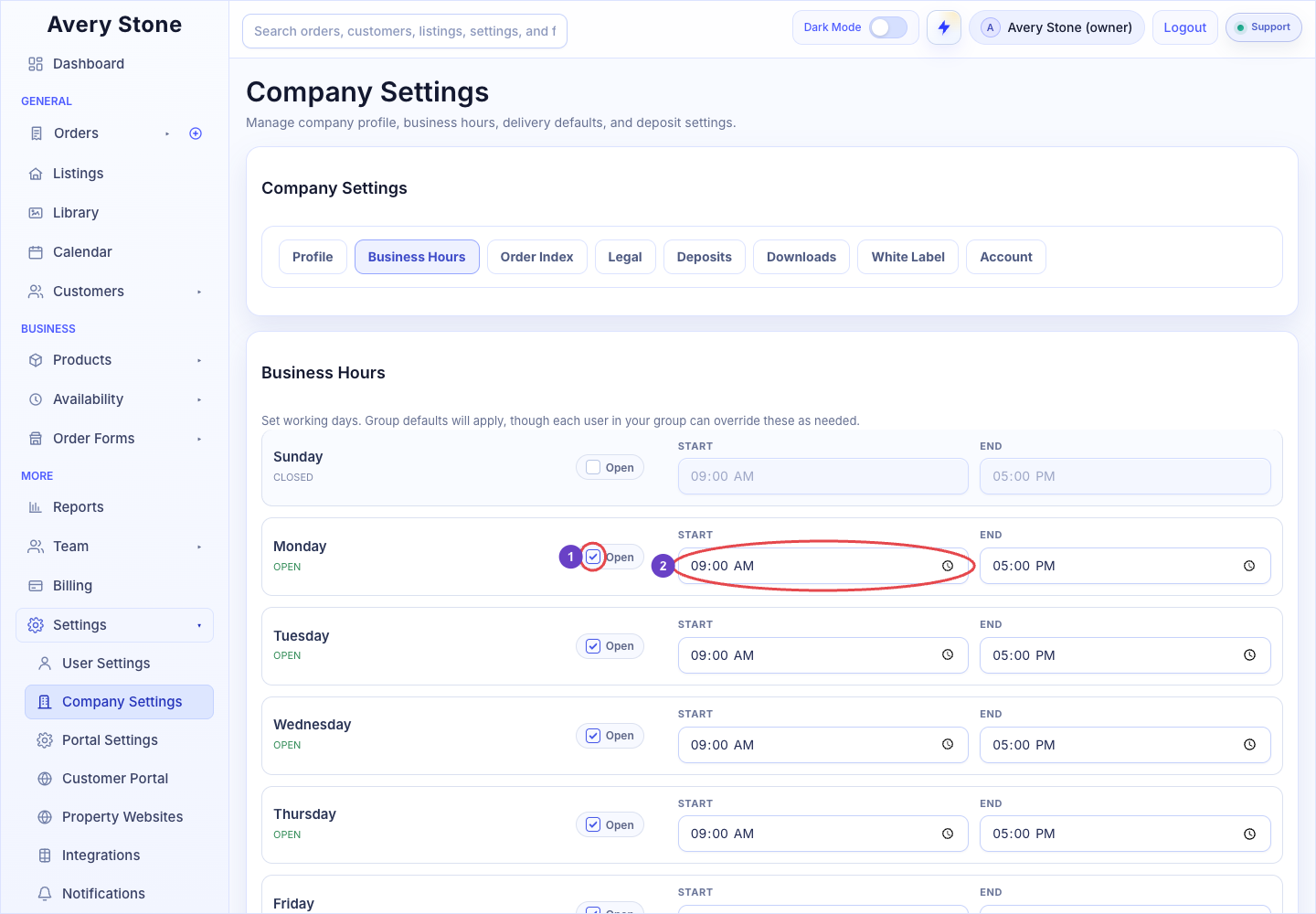
Business Hours: 1 Monday Open; 2 Monday Start Time. The Avery Stone Demo workspace is shown; your saved values and available controls may differ. Open the Full-Size Image.
Configure Your Week
For each day:
- Check Open if you work that day.
- Set Start and End times.
Select Sync Mon-Fri to copy Monday's hours to the other weekdays, then adjust any exceptions. Save your changes with the section's save button.
How Business Hours Are Used
The panel notes: "Group defaults will apply, though each user in your group can override these as needed." Company hours are the default working window. Individual team members can have their own Working Times in the team member editor in Team, which take priority for that person.
Business hours work together with your other scheduling rules:
- Availability → Booking Settings controls notice, booking window, and slot spacing.
- Calendar → Block Time Off removes specific dates.
- Availability → Daypart Availability controls sunrise, sunset, and twilight offerings.
Troubleshooting
- Customers see no times on a day you work. Check that the day is Open, that the assigned team member has working times on that day, and that the date falls inside your booking window.
- Read-only message. Business hours need the Manage Settings permission.